Martin's HelpDesk

  • Home
  • About
  • Support
  • Services
    • Web Listings →
      • Create a Forum
      • Create a Job Listing
      • Create a Property Listing
    • IT Services →
      • IT Care Plans
      • Backup
      • Smart Phone Setup
      • ESET Security
      • Email Security
      • Job Tracking
    • Web Services →
      • Domain and Hosting
      • Web Development
      • Web Listings
      • eCommerce
  • Testimonials
  • News
  • Contact

2 January, 2023 by Martin Vines 2 Comments

FreeFileSync

What is FreeFileSync

FreeFileSync is a folder comparison and synchronization software that creates and manages backup copies of all your important files. Instead of copying every file every time, FreeFileSync determines the differences between a source and a target folder and transfers only the minimum amount of data needed. FreeFileSync is Open Source software, available for Windows, macOS, and Linux.

Web site and download

Web Site: https://freefilesync.org/

From this page you can access

  • Tutorials
  • The application Download page
  • The User Forum (for help topics)
  • The user Manual

    Before use

    Use an external USB storage device and ensure it has enough capacity to store the files on your computer.

    It is recommended to format the USB device using the NTFS file system. This will ensure that large files will be included in the sync process.

    You can check each folder size on your computer using Windows File explorer and right click on each relevant folder to be synchronised. Then click Properties to view the folder size (capacity). Add these together to get an idea of the size of external USB drive capacity that is needed.

    The folders to be synced may include all of the following:

    • Desktop
    • Documents
    • Downloads
    • Music
    • Pictures

    Running FreeFileSync

    After running FreeFileSync for the first time a configuration file is created with the settings and folder pairs you created during the first run. You are then prompted to save this file. I recommend saving this to the Desktop so that next time you run it you just need to double click the icon on the desktop.

    I would give the saved configuration file any name that helps you understand what the icon on the desktop will be used for.

    Using Volume Name instead of Drive Letter

    I recommend replacing the drive letter on the right hand side with the volume name of the USB device. Storage devices are allocated drive letters by the system and this will avoid issues when you have multiple storage devices connected to your computer.

    In the target side file path replace the drive letter (E.G. “D:”) with the Volume name (E.G. “[Integral]”). Enclose the volume name in square brackets (“[]”). Quotation marks ” are for clarity only and should be omitted in the file path.

    To change the volume name of the drive. Open File explorer > This PC or Destop > Right click on the drive and click on Properties. Under the General tab type in or change the name accordingly.

    The interface

    The interface can be a bit daunting as there is a lot of information on the screen. However once all the folder pairs are setup and the settings created then there are just 1 or 2 buttons to click to perform the backup/ Synchronisation.

    Click Compare to get an idea of what will be synced.

    Click Synchronise to perform the sync.

    Settings

    Clicking on either one of the icons (blue cog, Filter, green cog) brings up the same Synchronisation settings dialogue for all three of these items.

    Here your initial setting of your first folder pair is set into the item called All folder pairs. From here, if you wish, you can make individual changes  to each of the folder pairs.

    Backup

    Most users will simply want a BACKUP of their files and not a synchronisation. The recommended settings for a backup is as follows:

    The above image shows the settings as follows:

    With the files on the left hand side (your computer)…

    • Copy new item to the right
    • Update item to the right

    Difference (Action)

    • Update right item

    With the files on the right hand side (your USB backup storage)…

    • (Item is newer) Do Nothing
    • (Item does not exist) Do Nothing

    Unlike some other sync programs where the folder pairs are added on the left hand side and each folder can be synced separately, FreeFileSync lists the Session name on the left hand side and it is only possible to sync all folder pairs together.

    This setup process just needs to be done once.

    The first Sync process will always take a long time depending on how big your user data (files) is on your computer and the speed of your USB connection. This could be anything from a few minutes to a few hours.

    When the process is run the second time and subsequent times, only new or updated files will be copied to the external USB device and this should then only take a few seconds or minutes.

    Further Notes

    Close all applications before using FreeFileSync.

    Running the FreeFileSync configuration file (created above) automatically performs a compare routine. However, when you run the Synchronise process and  you have some files open (e.g, Microsoft Outlook or if a document is open in Microsoft Word) it will cause read errors saying that the “File is locked by another process.” Be sure to close all applications and then run the Compare and Synchronise routines again.

    Error Messages

    If there is an error message after the Sync process such as “The recycle bin is not available for {enter file path here}”.

    The fix for this would be to set deletions to be permanent. This setting can be found in the config settings of the application.

    Further help

    Web Site: https://freefilesync.org/

    From this page you can access

    • Tutorials
    • The application Download page
    • The User Forum (for help topics)
    • The user Manual

    Donate (£5)

    If you have found this article useful, please click the button below to make a donation to show your appreciation and help fund these support articles.

    Donate

    Buy Installation (£25)

    If you would like us to setup your backup for you then please click the button below to pay and book for the installation and setup. We will reply to confirm your booking and arrange a remote desktop session.

    Buy Now

    Filed Under: Uncategorized

    29 January, 2021 by Martin Vines Leave a Comment

    Google Photos

    Revised on 29/01/2021

    Starting June 1, 2021, any new photos and videos you upload will count toward the free 15 GB of storage that comes with every Google Account or the additional storage you’ve purchased as a Google One member. Your Google Account storage is shared across Drive, Gmail and Photos.

    This means that unlimited free storage for all your photos and videos will end on 21 June 2021. All existing photos will remain on Google Photos free of charge.

    Note: this applies to high quality photos and videos and not original quality photos and videos. These already counts towards your storage limit.

    Your photos start with the camera on your smartphone and the Google Photos app.

    All Android and iPhone users can enjoy using Google Photos with a Google account.

    Google Photos works with your smartphone and your Google account storing your photos and videos in the cloud with the option of freeing up storage space on all your devices once they have been uploaded.

    Viewing your photos and videos

    • On any device: Open the app called Photos
    • On a computer: https://photos.google.com
    • Speaking: Using the Google Assistant (“OK Google”), “Show my photos”[“on Device_Name”]

    Features

    Google Photos offers the following features:

    Photos

    • Memories (with slideshows showing the same week – 1 year ago, 2 years ago etc.)

    Albums

    • Lists of Favourites, People & Pets, Places, Things, Videos, Collages, Animations and Movies.
    • Photos stored in other folders on the device (e.g. WhatsApp)
    • Albums (Photo Sharing and created albums)

    For you

    • Create New (Album, Photo book, Movie, Collage, Animation)

    Sharing

    • All the photos you have shared with others and what others have shared with you.

    Getting Google Photos to work with your device

    Search for the Photos app which may already be installed on your device.

    If not then install Photos from Google Play or the App Store (Apple).

    Sign in with your Google Account

    Tap the box in the upper right corner to reveal the sign in details and the email address of the Google Account. Check that your photos are being backed up by finding the notice: “Backup complete”.

    This is also a good opportunity to Free up the space your photos are taking up on your device. Tap “Free up ??? MB“. You will then be ready to free up space on your device – tap again at the bottom to free up device space.

    If these are not shown then sign in with your Google Account and check that the photos are being backed up.

    This is a good opportunity to look at the Google Photos settings.

    Tap the photos settings icon (cog) on the account pop up screen

    Backup and sync

    Make sure that…

    • “Back up & sync” is turned on and then under this setting check the following….
    • The correct email address of your Google account is shown
    • “Upload size” is set to High quality (free unlimited storage until 21 June 2021) or Original quality if you are comfortable with your current storage allowance/ plan. Depending on how many photos you have you may want to opt for a yearly storage plan of 100GB (£15.99), 200GB (£24.99) or 2TB (£79.99).
    • “Back up device folders” is set to include the folders on the device that you wish to show others from your Google photos. Therefore most users may not want to include the WhatsApp Photos in their library. For more information on this see the section called WhatsApp below.

    Mobile data usage

    Turn this on if you don’t mind using your mobile data plan to immediately backup or synchronise your photos when NOT on a Wi-Fi connection.

    Note: Otherwise this will then use your mobile data allocation especially if you are taking photos outside of a Wi-Fi connection.

    Using the Photos app

    On opening Google Photos, you will see the following tabs at the bottom of the screen:

    Photos | Search| Library

    With either Photos selected, change the size of the thumbnails by using “Pinch-to-zoom” (Touch two fingers on the touch screen, and move them apart to zoom out, or together to zoom in).

    Tap on a photo to open it, pinch-to-zoom can be used at any time to zoom in. Once zoomed in drag your finger in any direction to move around the photo. Double tap to bring the photo back to fit the screen. Then swipe left or right to go to the previous or next photo.

    Photos are usually arranged with the most recent at the top. As you drag your finger up or down the screen, a side button will appear on the right side with up and down arrows. Quickly put your finger on this button and move it downwards or upwards. When browsing in the Photos tab in this way, a time line will appear showing the years with a larger pop up showing the current month and year position.

    Create an Album

    Photos can be allocated to an Album.

    There are various ways to create and album but the common way is as follows:

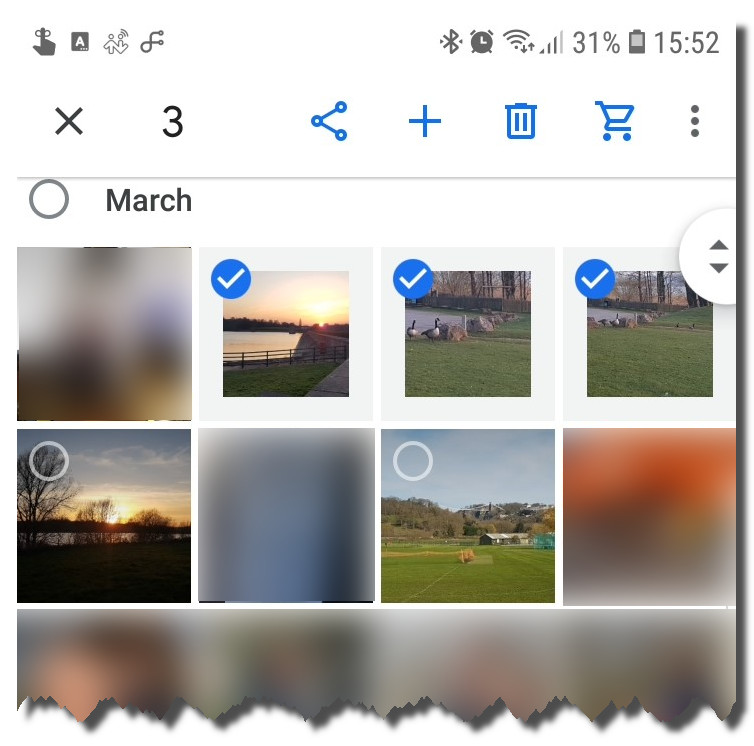
    1. Hold your finger on a single photo until the photos show a round grey circle in the top left corner. With this “select photos” view, the selected photo will get a tick in that circle and a new icon menu appears at the top of the screen.
    2. In this “select photos” mode, tap individual photos to select them accordingly.
    3. Tap the + button on the icon menu.
    4. EITHER
      under “CREATE”, creates a NEW album if you don’t already have an album to add these photos to
      OR
      scroll down to the RECENT or ALL ALBUMS sections and select the album you want to add the selected photos to.
      Under create you have the option to create an Album, Shared album, Movie, Animation or Collage with the already selected photos.

    Albums are collections of photos that have been tagged with an album name. This means that when you delete an album, you are in fact just deleting the tag name and not the photos that were in that album. The photos will still remain in the Photos tab at their respective time line position.

    SlideShow

    It appears that the Google Photos app on your mobile device no longer supports slide shows.

    You can however find an app in the Play Store that creates slideshows.

    Sharing

    Photos

    You can share your photos by selecting individual photos. Now tap the share button.

    Albums

    For multiple photos I recommend creating an album of these photos first and then opening that album to share the album.

    To share an album, tap on the album to enter into the album, tap the three vertical dots, then Share.

    Sharing Options

    The two sharing options called “Get Link” and “SEND IN GOOGLE PHOTOS” don’t actually attach copies of the photos to the share. This means there is no usage of space or copies made.

    Get Link

    The safest way to share is to tap the “Get link” icon. This creates a link code which is then stored in the device’s clipboard. Then you can proceed straight to an app under the “Link copied. Share it in an app.” And it will open the app you select and paste the link for you. Leaving you to select a recipient and add any other wording in the message before you send it.

    Any recipient of the message can click on the received link to view and download the photos. If they also have a Google account there will be an option to “Add to Library”. This then takes those same photos and adds them to their own library maintaining each photo’s exif information such as the date it was taken and the location. This way, no photos are downloaded or stored on the device.

    SEND IN GOOGLE PHOTOS

    You can send in Google Photo to any other user who has a Google Account. Use the magnifying glass icon to search by name, phone number or email address. Only those contacts in your address book with Google email addresses (or those with Google accounts) will be displayed. Note: you don’t need a Google email address to have a Google account.

    The recipient will get a notification from Google. They can then select to “Add to Library”. This is recommended because the sender may at a later stage decide to delete the share. If that happens and the recipient has not yet added to their library then the recipient will no longer have access.

    Other Share options

    The other share options all involve making or attaching a copy of the photos in other apps. This can cause issues with bandwidth, data plans or space on both your and the recipient’s device.

    WhatsApp

    People attaching videos and photos to WhatsApp messages (instead of using “Create link” as explained above) clog up the memory on a device.

    Many smartphone users have a restricted amount of storage space on their device and soon run out of space.

    Keep your device’s storage space free from WhatsApp photos and videos BUT keep the ones you want in your Google Photos library.

    Here’s how to do it.

    1. In WhatsApp tap and hold on the media (image or video) you want to keep.
    2. Tap the share icon
    3. Tap on Upload to Photos
    4. Tap the button “Upload”
    5. Back on the conversation screen in WhatsApp, tap and hold on the media (image or video)
    6. Tap the delete icon
    7. Tap Delete for me

    Otherwise, view and enjoy the media you receive then DELETE it!! – See Steps 5, 6 and 7 above.

    Other Photo Viewing and Syncing Options

    On some devices you can choose to use the manufacturers offering instead of or in addition to Google Photos.

    We’ll briefly cover the popular brands below.

    Samsung

    Samsung’s app is called Gallery and works in a similar way to Google photos where photos and videos are synchronised to your account in the Samsung Cloud.

    There are price plans for storage greater than the free 15GB, starting at £0.79 per month (50GB).

    Viewing your photos and videos

    • On any signed in Samsung device: Open the app called Gallery
    • On a computer: https://support.samsungcloud.com and click on Gallery

    iPhone

    The Apple iPhone’s app is called Photos and works in a similar way to Google photos where photos and videos are synchronised to your account in Apple iCloud.

    There are price plans for storage greater than the free 5GB, starting at £0.79 per month (50GB). The higher plans are for 200GB and 2TB.

    Viewing your photos and videos

    • On any signed in Apple device: Open the app called Photos
    • On a computer: https://www.icloud.com/ and click on Photos

    Huawei

    Huawei’s app is called Gallery and works in a similar way to Google photos where photos and videos are synchronised to your account in Huawei Cloud.

    There are price plans for storage greater than the free 5GB, starting at £0.79 per month (50GB). The higher plans are for 200GB and 2TB.

    Viewing your photos and videos

    • On any signed in Huawei device: Open the app called Gallery
    • On a computer: https://cloud.huawei.com/ and click on Gallery

    Need any help with your photos?

    We offer a help service to get all your photos on-line and in order:

    • Scanning/ taking photographs of existing paper photos or scanning of negatives to create digital copies for upload.
    • Help you setup your Google Photos with a Google account.
    • One-on-One training in working with your photos, creating albums, collages, films, animations and photobooks.
    • How to edit your photos and change the date taken so that they appear correctly in your timeline.
    • Setting up People and Pets so you can attach a name to a face (e.g.: “Jim”) and have Google do the rest. Google can then put the same name to that face for all your photos. All you then have to do is say “Show all photos of Jim”.
    Ask us for a quote

    Filed Under: Projects

    1 July, 2020 by Martin Vines Leave a Comment

    Emergency on Huawei Phone

    In a medical emergency, the services look to your phone as the first point of information.

    A simple swipe upwards on the phone lock screen and a tap on the word EMERGENCY should reveal the emergency screen with an option to view “EMERGENCY INFORMATION“.
    If there is nothing there then this tutorial is for you!
    Set up your emergency information now and prepare for the loss of your phone or for your own medical emergency.

    Below is a guide for setting up your emergency information on your Huawei phone.

    Previously I wrote a similar procedure for the Samsung phone.

    Huawei first requires you to create a business card about yourself before presenting you with the option of Emergency Information. Thereafter, once your Emergency information is added, you can add up to 3 Emergency Contacts.

    Before you start make sure your intended emergency contact names are recorded properly in your Contacts – E.G.
    First Name: Bob, Last name: Smith, Mobile: +44 7804…
    It is important to add +44 (country code) in front of all your UK numbers in case the contact needs to be called from abroad while you are travelling.

    1.

    On your phone open the Phone app and select the Contact tab at the bottom or open the app called Contacts directly.
    At the top of your contacts list you should see Groups, Business cards and My card. Tap on My card.

    2.

    Enter your Name, Organisation (if applicable) and as many other details as possible. Tap ADD MORE FIELDS to make sure you have covered everything. Tap on the camera icon at the top to include an image of your face. When finished tap the tick mark in the top right of the screen.

    3.

    You should now see your name as the Business card as in step 1 above. Tap your name and you should then see your business card appear. It has a QR code in the middle. This QR code (Square type of barcode) contains everything about you. More about this later.

    You are now done!

    4.

    Tap on Emergency Information on the bottom right. Enter as much information about yourself as you can: Blood type, Allergies, Medications etc. Type the word “None“, instead of leaving the field blank (shown as None specified), as this will ensure that the word None is shown when your information is being viewed.

    Under EMERGENCY NUMBERS tap on Emergency contacts and tap ADD CONTACT. Find and tap on your preferred emergency contact and phone number to add to your Emergency contacts list. You can repeat this process to add up to three contacts.

    QR Code and what it does

    The resulting QR code shown in My card (now shown as your name), is for other phone users to add YOU to their own contact list.

    Instead of giving someone a business card you can use the My card feature of your phone to pass on your contact details.

    1. Open the Contacts app, tap on your name (My card) and show the person your QR code.
    2. That person then in turn switches on their phone and takes a picture of your QR code, which then saves all your contact information into their Contacts app.
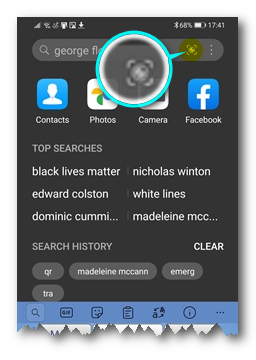
    3. To take a snap of a QR card on a Huawei phone, simply swipe downwards on any home screen and tap the code scanner icon in the top right of the screen, and position the phone above the QR code to capture it.
      QR Code

    What else should you do?…

    This is just ONE of about 30 steps we do in our comprehensive smartphone setup.
    Get an expert to customise your SmartPhone to suit your Work, Play, Travel and Everyday lifestyle.

    SmartPhone Setup

    Filed Under: Mobile

    4 April, 2020 by Martin Vines Leave a Comment

    Google Music

    Get all your own music on all of your devices for free with no adverts (up to 100,000 songs)!!

    Order your Google Music upload

    Wouldn’t it be great to be able to listen to music at any time simply by saying “Play my music”?

    To get music for all your devices you have a few options.

    1. Subscribe to a music service and use their app to play the music. The popular music services are: Spotify, SoundCloud, Jango, Deezer, Amazon Music, Google Play Music, Apple Music.
      (Some of the above are subscription based or free with adverts)
    2. Copy your existing music (CD’s and files) onto the storage of all your devices and use an app to play your music.
    3. Copy your music once to a cloud provider and use their app to play your music on all your devices.

    In this instance I am going to cover no 3 above using Google Play Music.

    Google Play Music

    With Google Play music you have a Free option or a Subscription option.

    Free: Upload your songs to Google Play Music. You are allowed up to 100,000 songs. There is no charge at all.

    Subscription: The same as the Free option but for £9.99 per month you get ad-free on-demand streaming of over 40 million songs, unlimited radio and a subscription to YouTube Music. For £14.99 you can include the family of up to 6 members.

    Subscription

    To subscribe to Google Play Music:

    1. Website: https://music.google.com.
      Make sure you are logged in with the SAME Google account you use on all your devices (Tablet, Mobile, Google Nest etc.).
    2. Click the three stripes on the top left and click SUBSCRIBE
    3. Choose INDIVIDUAL or FAMILY and follow the prompts to set up your payment.

    Now you can listen, play internet radio and watch YouTube Music video as much as you like and on any connected device which is logged in using the same account. You can also create playlists of up to 1,000 songs per playlist.

    Use Google Play Music for Free

    If you already own a CD collection, save yourself almost £100 per year and upload up to 100,000 songs to your Google Music account. Want to add more songs you don’t already own? – buy them directly from the Google Play Music Shop. If you are spending less than £100 per year on your new purchases you would still be scoring. Individual songs are usually £0.99 and albums between £5.99 and £10.99.

    How to get your CD collection into your Google Play Music account

    1. Rip your CD’s to your Music Library on your computer
    2. Upload to Google Play Music
    3. Create custom Playlists
    4. Listen to your music on any of your devices.

    Rip CD’s to your Computer

    Preparation

    What you will need:

    • A computer with a CD/DVD Drive
    • Windows Media Player on a Windowss computer or iTunes on an Apple computer. These are already installed. There are other software options, but these work fine.
    • Music Manager (Software from Google)
    • A collection of music CD’s (1 or more)

    Get your existing music files and software ready

    Below are my recommendations for a smooth experience and the best sound quality

    Music folder on your computer

    ALL files in your Music folder will be added to Google Play Music. If you already have stored music in your Music folder, it is important at this stage to delete or move unwanted songs to another location on your computer.

    Windows Media Player

    1. Open Windows Media Player (Start>Windows Accessories> Windows Media Player)
    2. In the menu, click Tools>Options: select the Privacy tab>untick “Download usage rights automatically when I play or synchronise a file
    3. In the menu, click Tools>Options: select the Rip Music tab> under Rip settings>Format, select the drop down and choose MP3, untick Rip CD automatically, tick Eject CD after ripping, under Audio quality move the slider to Best Quality (320 Kbps).
    4. Click OK
    5. Close Windows Media Player

    iTunes

    Please see the following video which guides you through the process.

    Transfer Music to Google Play Music

    There seems to be three methods in uploading your music files to Google Play Music. Using…

    1. The Google Play Music web page (not recommended)
      Click the 3 stripes on the top left>click + Upload music and drag songs from your Music folder using Windows Explorer or use the SELECT FROM YOUR COMPUTER button.
    2. A Google Chrome Extension (not recommended)
       Click the 3 stripes on the top left>Settings, scroll down to ADD YOUR MUSIC, click INSTALL. This then takes you to the Chrome Web Store>Google Play Music. Click Add to Chrome. Note: Be careful when using this extension as the default setting performs a scan of both the Pictures and the Music folders for audio files. You can unselect this option and change the selection to a custom folder – e.g. Music.
    3. Music Manager (recommended)
      (Windows, Mac and Linux)

    Using Music Manager

    Before ripping your CD’s make sure Music Manager is setup correctly on your Windows computer.

    1. Download Music Manager: https://play.google.com/music/listen?u=0#/manager
    2. Once saved in your Downloads folder, click on the downloaded file (bottom left of the Chrome window) and install the software.
    3. Sign in with your Google account
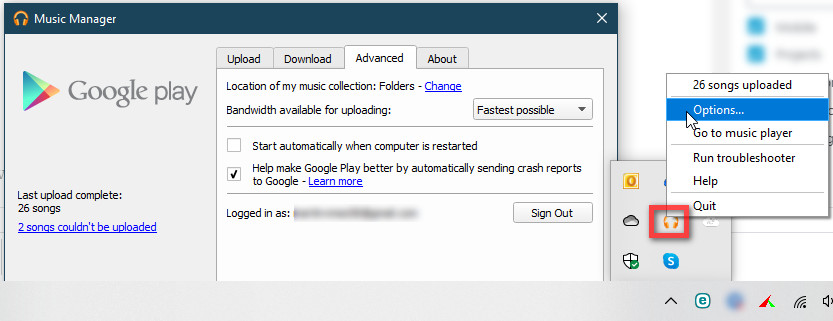
    4. For further options find the Music Manager options:
      >In the System Tray, click the up arrow to show hidden icons (bottom right of the main computer screen), find the Music Manager icon, right click >Options>Advanced.
      >Untick Start automatically when computer is restarted (recommended).
      >You can sign in and out in the Music Manager should you wish to manage someone else’s Music. In this case store their music in a different folder and Change the location of the music collection on this same “Advanced” tab.

    RIP your CD’s

    Get ready to start ripping your CD’s

    If you have followed the recommended guides above please follow this procedure:

    Start the Music Manager before ripping your CD’s to your computer:
    Start>Music Manager>Music Manager

    Put your music CD into the CD/ DVD drive.

    Opening Windows Media Player

    If nothing happens when the CD is inserted, open Windows Media Player (Start>Windows Accessories> Windows Media Player).

    If you get a prompt from Windows as to what to do when an audio CD is inserted into the drive, click Open with Windows Media Player. It may be opened in Now Playing mode. If this is the case, then switch to Library (icon at the top right of the Now Playing Mode window).

    Selecting the songs to rip

    In the Windows Media Player library a list of songs on the Audio CD will be displayed. Put a tick mark in the box for each song you would like to rip to your computer. You can sample each song simply by double clicking on the song.

    Once you are happy with your ticked selection, click “Rip CD” in the player task bar which is found along the top of the Windows Media Player window.

    The CD should eject when the ripping is complete. At the same time, Music Manager will detect new songs in the Music folder and automatically begin uploading these to your Google Play Music account.

    Creating Play Lists

    Open the Google Play Music website: https://music.google.com

    You can now add either individual songs or albums (multiple songs) to a playlist.

    You can create a new playlist on the fly as you are adding songs or use the Playlist drawer. The Playlist drawer is the icon at the top right with three horizontal stripes with the small right pointing arrow at the bottom stripe. Once clicked, click the + button to create a new playlist name.

    Click on Music Library on the left task pane. Click on either the Albums or the Songs tab at the top. You can click the vertical ellipsis (three vertical dots) or right click on a song and select “Add to playlist” and choose a playlist.

    Playlist name ideas

    “Love Songs” for those romantic, candlelit evenings.
    “Dance Music” for discos, dancing or parties.
    “Relaxing Music” or something like that when its time to sit back and relax.

    Listening to your music

    Now you are ready to listen to your music.

    What you will need to listen to your music

    Any signed in device such as

    1. A computer opened on the https://music.google.com web site
    2. A tablet or smartphone with the Google Play Music app
    3. A Google Home or Nest mini
    4. Google Chromecast connected to a monitor or TV
    5. A good quality speaker or pair of speakers connected by cable or bluetooth to the computer, tablet, smartphone, monitor or TV.

    Now simply give a voice command using the Google Assistant to play your music

    E.G. “Ok Google, play [song name] [album name] [on [name of chromecast device]]”
    Further commands you can use:
    “Ok Google, play next”
    “Ok Google, volume down”
    “Ok Google, volume up”
    “Ok Google, set volume to [number 1 – 10]”

    Would you like help setting up your music?

    We charge £1 per CD to upload to your Google Play Music account

    We’ll upload all songs from each CD and it will then be up to you to delete the songs you don’t like and create your own playlists.

    Google Play Music
    Please enter your first name
    Please enter your surname
    Enter a company name (optional)
    Address
    Street
    Suburb
    City
    County
    Postal Code
    Please complete ALL address fields
    Please enter a telephone number
    Please enter an email address
    Upload CD to Google Play Music

    CD Upload (each): £ 1.00

    Please count all the CD's and enter the total here
    Total

    Collection and Delivery
    Bristol and Bath areas only
    Leave the above un-ticked if you are able to bring the CD's to Martin's HelpDesk
    £
    Terms and Conditions...>
    Please allow 24 hours per 100 CD's or part thereof.
    We will email you to confirm your drop off day and time option.

    • The CD's supplied must be standard audio CD's or CD's with MP3 files. All other CD's will be omitted
    • You must supply us with your Google account details for us to perform the process. We will discard the account records when the job has been completed
    • Removal of unwanted tracks and creating playlists can be done by logging into your Google Play Music account

    **This must be taken within 2 weeks from date of payment. You will receive an email requesting to book a time and date. If no response is received within two weeks your payment will be forfeited.

    Please provide us with 2 date and time options within the next 2 weeks
    :
    :

    PayPal Acceptance Mark

    cheque

    Pay by cheque
    Please make your cheque payable to:
    Martin's HelpDesk
    and post your cheque to:
    Martin's HelpDesk
    156 Hungerford Road
    Brislington
    Bristol
    BS4 5EZ


    Enter the Card No, Expiry Month / Year, last 3 digits (CVC) on the back of your card and postal code if prompted.
    This payment method adheres to the new European regulation introduced on 14 September 2019 which mandates Strong Customer Authentication (SCA) for online card payments. ...More Info
    Essentially SCA may prompt you for additional authentication to complete a payment.
    Sending

    Filed Under: Mobile, Projects

    10 February, 2020 by Martin Vines Leave a Comment

    What if I lose my Phone?

    No matter how conscientious you might be, losing a phone can happen to anybody.

    Your phone can go missing or even stop working! This can be due to:

    1. Theft
    2. Loss
    3. Breakage or break down
    4. …or maybe you just left it behind somewhere

    How do you know that your data is safe, that no-one else can access your data and how to recover your phone?

    Fear not – if you just spend a few minutes getting your ducks in a row you need worry no more.

    • Lock your phone
    • Store your data in the cloud
    • Setup “Find my Device”

    Make sure your phone is locked

    Most important is to lock your phone. Once you have set up your phone locking security your phone will automatically lock after a predefined time and/ or action.

    You can then unlock your phone in one of many ways (some or all will be supported on your phone).

    • Pin Code
    • Pattern
    • Face-unlock
    • Fingerprint sensor
    • Password

    Make sure you are storing your data in the cloud

    Your data comprises:

    • Contacts
    • Calendar
    • Photos
    • Documents such as boarding tickets, train and bus travel, Notes, Reminders etc.
    • WhatsApp conversations
    • Text messages and call history

    Every device should be linked to either your Google or iCloud account and also to your phone manufacturer cloud account if available. This will assist in Find my Device as detailed below.

    Find my Device

    You should never need to turn your device off. By this I mean “power down”. If your device is powered down you will not be able to find it or perform any of the operations below.

    Furthermore, the following switches need to be set to “on”:

    • Mobile Data
    • Location
    • Sync

    The above switches can be left to “on” at all times. I would also leave the Wi-Fi setting to “on” as well.

    Recovery

    Firstly you can try calling your own number from another phone or mobile. If answered, a reasonable person will help you to retrieve your phone.

    Finding your device is done using another device such as a computer.

    Using a web browser, log into your account and use the “Find a lost device” feature.

    Your logged in devices will appear here in a list where you can:

    Google Account

    • Ring
    • Locate
    • Lock (and leave a message to the finder)
    • Erase device
    • Sign out

    Samsung Account

    • Lock (and leave a message to the finder) or Lock and Power off
    • Erase Data
    • Backup
    • Retrieve calls/Messages
    • Unlock
    • Extend Battery Life
    • Set Guardian

    You could contact your mobile operator to disable your SIM card and redirect your calls to another number.

    Once you have gone through the above steps you will have peace of mind that your data is secure. You are now ready to purchase or use another device at any time. Your contacts, calendar, apps and data will be just appear just as before!

    Would you like us to set this up for you?

    Please visit our Smart Phone Setup Page and select a plan that suits you.

    Filed Under: Mobile

    • 1
    • 2
    • 3
    • 4
    • Next Page »

    Recent Posts

    • FreeFileSync
    • Google Photos
    • Emergency on Huawei Phone
    • Google Music
    • What if I lose my Phone?

    Categories

    • LogYourJob
    • Mobile
    • Operating Systems
    • Projects
    • Security
    • Uncategorized

    Recent Comments

    • Martin Vines on FreeFileSync
    • Vladimir Shulyaker on FreeFileSync
    • Martin Vines on Why you need a Samsung Account
    • Julia on Why you need a Samsung Account
    • Martin Vines on Why you need a Samsung Account

    Archives

    • January 2023
    • January 2021
    • July 2020
    • April 2020
    • February 2020
    • October 2019
    • October 2018
    • September 2018
    • June 2018
    • April 2018
    • September 2017
    • January 2017
    • January 2016
    • October 2015
    • July 2015

    View All Testimonials

    Many thanks for your help Martin. As always, great service and a positive result.

    — Tracey Killoran

    Recent Posts

    • FreeFileSync 2 January, 2023
    • Google Photos 29 January, 2021
    • Emergency on Huawei Phone 1 July, 2020

    Follow Us On…

    Follow us on FaceBook   Follow us on LinkedInFollow us on Twitter

    Contact Us

    Call 0117 911 8064
    Martin's HelpDesk
    35 Blenheim Drive
    Filton
    Bristol
    BS34 7AX

    Privacy Policy

    Copyright ©Martin's HelpDesk 2018. Developed and Designed by martin's HelpDesk using the Genesis Framework and Executive Pro Theme